Licensing
MT Showcase clients must have an up-to-date license. The license defines the scope of your deployment. For example, it specifies the maximum screen size, whether Codice support is enabled, and the license expiry date.
If you installed a new version of MT Showcase, you must obtain an activation key from your MultiTaction representative. You use this key to request a license.
If you have an existing version of MT Showcase but your license has expired, or will soon expire, you must request a new activation key from MultiTaction.
In both cases, you must launch the license wizard and enter your activation key. MultiTaction uses this key to generate your MT Showcase license.
Request an Activation Key
Your MultiTaction representative will provide you with a 16-character activation key for your MT Showcase license. After receiving your activation key, you can:
Activate your license. Choose this option if your application computer is currently connected to the internet; see Activate Your License Using LicenseTool below.
Request a license. Choose this option if your application computer is not connected to the internet; see Request a License While Offline below.
Activate Your License Using LicenseTool
Your application computer must be connected to the internet to use this method.
You can use the LicenseTool command line tool to automatically request, receive and activate a license for the current computer.
Ubuntu Application Computers
Follow these steps:
Right-click the desktop and launch a terminal emulator.
Run the following command:
$ /opt/mt-showcase/bin/LicenseTool --activate <key>
Where
<key>is your 16-character license activation key. When you enter the key, include hyphens between each four-character group. For example:$ /opt/mt-showcase/bin/LicenseTool --activate ABCD-AC2D-HGF6-HVD2
Note
On Ubuntu systems, LicenseTool is case-sensitive. Do not type
licensetool!Start the MT Showcase client; see Start or Stop MT Showcase.
Windows Application Computers
Follow these steps:
Open a command prompt and change to the MT Showcase installation folder. The default installation folder is:
C:\Program Files\MT Showcase\binRun the following command:
LicenseTool --activate <key>
Where
<key>is your 16-character license activation key. When you enter the key, include hyphens between each four-character group. For example:LicenseTool --activate ABCD-AC2D-HGF6-HVD2
Note
On Windows systems, LicenseTool is not case-sensitive.
Start the MT Showcase client; see Start or Stop MT Showcase.
Activate Your License Using the Wizard
Applicable to both Ubuntu and Windows application computers. Your application computer must be connected to the internet to use this method.
You can use the license wizard to automatically request, receive and activate a license for the current computer. Follow these steps:
Start the MT Showcase client directly; see Start or Stop MT Showcase.
Important
Do not use MT Launcher to start an unlicensed MT Showcase client or a client with a license that has expired.
If MT Showcase is not yet licensed (or the current license has expired), the license wizard launches.
From the drop-down list, choose Online: Use activation key to register online. Then click Next.
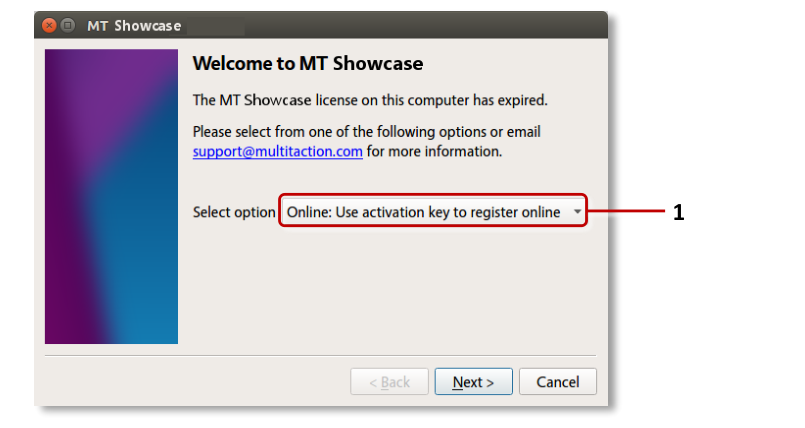
License wizard, welcome screen. 1 Task options.
When prompted, enter your MT Showcase activation key. Then click Next.
Wait while your MT Showcase license downloads. Then click Finish. Your MT Showcase installation is now licensed and activated.
MT Showcase now starts automatically.
Request a License While Offline
Applicable to both Ubuntu and Windows application computers.
If your application computer cannot connect to the internet, you can generate a license request file and send this file to MultiTaction Support for processing. Follow these steps:
Start the MT Showcase client; see Start or Stop MT Showcase.
If MT Showcase is not yet licensed (or the current license has expired), the license wizard launches.
From the drop-down list, choose Offline: Create license request.
When prompted, enter your 16-character license activation key. Then click Next.
Save your MT Showcase license request file. For example,
MT-Showcase.cslicensereq. You can save this file on the local computer or, for example, on a USB device.Send your license request file to support@multitaction.com.
After MultiTaction Support have processed your license request, they will send you a license file. For example,
MT-Showcase.cslicense.When you receive your license file, save it onto your application computer. You can save this file to any folder; the license wizard will move it to the correct location when you activate your license.
You now need to activate your license; continue to the next section.
Activate Your License While Offline
Applicable to both Ubuntu and Windows application computers. Applies only if you received a license file from MultiTaction in the previous section.
Now activate the license that you received from MultiTaction. Follow these steps:
Start the MT Showcase client; see Start or Stop MT Showcase.
If MT Showcase is not yet licensed (or the current license has expired), the license wizard launches.
From the drop-down list, choose Offline: Activate license. Then click Next.
In the next wizard screen, select the license file that you received from MultiTaction. Then click Next.
Wait while your MT Showcase license is activated. Then click Finish. Your MT Showcase installation is now licensed and activated.
MT Showcase now starts automatically.
Renew Your License Before It Expires
Note
The license renewal procedure described below will require you to temporarily rename your existing license.
Your MT Showcase license is valid until midnight on the expiry date. However, if your MT Showcase license will shortly expire, you can renew the license now.
Follow these steps:
Check the expiry date for your license. The license expiry date is written to the log file when MT Showcase starts; for details about where to find the log file, see Start or Stop MT Showcase.
If you need to renew your license, obtain a new license activation key; see the activation key section above.
Temporarily rename your current MT Showcase license.
Note
This step is necessary to allow the license wizard to launch in step 4.
Locate your current license. It will be in the home folder (Ubuntu) or user profile (Windows) of the user who was logged on when the license was first activated; see Where Are My Files?.
Change the extension of your license file. For example, change
MT-Showcase.cslicensetoMT-Showcase.cslicense.TMP.
Start the MT Showcase client; see Start or Stop MT Showcase. Because MT Showcase is now effectively unlicensed, the license wizard launches.
Create a license request and activate your new license. Do one of the following:
If your application computer is not connected to the internet, follow steps 6 through 11.
If your application computer is connected to the internet, you can create and activate a new license automatically. Follow the instructions in the LicenseTool section above. Then go directly to step 11.
Manually create a license request file; see the offline request section above.
Send your license request file to support@multitaction.com. After MultiTaction Support have processed your license request, they will send you a license file. For example,
MT-Showcase.cslicense.(Optional) If you want to continue using MT Showcase while you wait for your new license file, you must temporarily change your license file back to its original name. That is, undo the file name change in step 3.
When you receive your new license file, if you reverted your license file back to its original name in the previous step, you must now change its extension for the final time. That is, you must repeat step 3.
Note
This step is necessary to allow the license wizard to launch in step 10.
Activate the new license; see the offline activation section above. Your MT Showcase installation is now re-licensed.
MT Showcase now starts automatically.
License Folders
The installed license location depends on the application computer's operating system. For details, see Where Are My Files?.