Start or Stop MT Showcase
This section describes how to start or stop the MT Showcase server and client.
Note
For server and client descriptions, see Introduction.
MT Showcase Clients
Start the MT Showcase Client
Do one of the following:
Start MT Showcase from MT Launcher: Tap the MT Showcase tile. This is the usual method for starting MT Showcase. It is available only if MT Launcher is installed on the application computer; see About MT Launcher below.
Start MT Showcase directly on Ubuntu computers: Right-click the desktop and launch a terminal emulator. Then run this command:
$ mt-showcase
Start MT Showcase directly on Windows computers: Double-click the MT Showcase desktop shortcut:

MT Showcase Windows desktop shortcut
Stop the MT Showcase Client
Applies to both Ubuntu and Windows application computers unless stated otherwise.
Use the following methods to stop the MT Showcase client. These methods return you to the OS desktop or back to MT Launcher:
Click the app and press Ctrl+Q to quit MT Showcase.
Tap the Exit Showcase widget in your app, if available. (Instructions for adding this widget to an app are in the MT Showcase Editor Manual.)
Tap the App Switcher widget in your app if it is configured to quit to the MT Showcase welcome screen. Then, if the welcome screen includes an Exit button, tap this button to quit to MT Launcher; see About MT Launcher below.
Instructions for adding an App Switcher widget that quits to the welcome screen are in the MT Showcase Editor Manual.
Instructions for displaying an Exit button on the welcome screen are in the MT Launcher Installation Manual.
Registered users can download these manuals from https://cornerstone.multitouch.fi.
(Available only on Ubuntu computers where the MultiTaction base image is installed) Click the app and press Ctrl+Alt+Esc to quit MT Showcase and return to the OS desktop. This method also quits MT Launcher if it is running.
Note
You can also quit from MT Showcase remotely using SSH. For details, contact MultiTaction Support; see Introduction.
Specify Which App Launches When MT Showcase Starts
You can specify which app to run when MT Showcase starts.
Note
By default, when MT Showcase starts up it automatically launches the most recent app -- the app that was running in the previous session. But you can override this.
Follow these steps:
If starting MT Showcase from MT Launcher: You can customize an MT Showcase tile (see About MT Launcher below) to launch a specific app from MT Launcher. For setup instructions, see the MT Launcher Installation Manual. Registered users can download this manual from https://cornerstone.multitouch.fi/mt-launcher-manuals
If starting MT Showcase directly on Ubuntu computers:
Right-click the desktop and launch a terminal emulator.
Run this command:
$ mt-showcase --app <app>
Where
<app>is the name of the app you want to launch. For example:$ mt-showcase --app "My First App"Note
Enclose the app name in double quotes if it contains spaces.
If starting MT Showcase directly on Windows computers: Customize an MT Showcase desktop shortcut to launch a specific app. Edit the shortcut properties and set the Target field to:
"C:\Program Files\MT Showcase\bin\mt-showcase.exe" --app <app>
Where
<app>is the name of the app you want to launch. For example:"C:\Program Files\MT Showcase\bin\mt-showcase.exe" --app "My first App"
Note
Enclose the app name in double quotes if it contains spaces.
About MT Launcher
MT Launcher is designed to run on video walls and provide end-users with a simple method for launching applications such as MT Showcase or MT Canvus. For details about setting up MT Launcher, see the MT Launcher Installation Manual. Registered users can download this manual from https://cornerstone.multitouch.fi/mt-launcher-manuals.
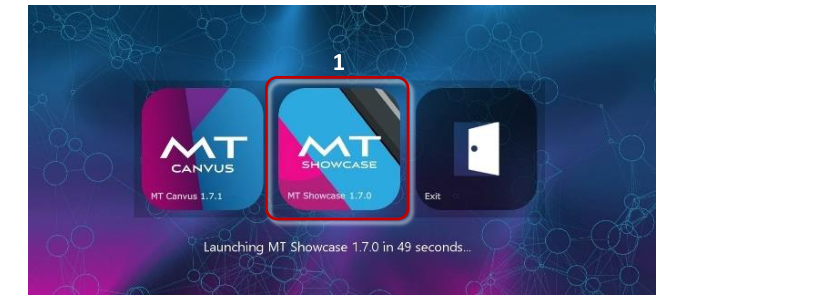
Example MT Launcher with MT Showcase tile (1)
MT Showcase Server
Note
The server is normally configured to start automatically as part of the installation procedure. Most users will not need to manually start the server.
Ubuntu Application Computers
Manually start the server: Follow these steps:
Right-click the desktop and launch a terminal emulator.
Run this command:
$ sudo start mt-showcase-server
Note
If the server fails to start, see Troubleshooting: Server Cannot Start if Port 80 Already in Use below.
Stop the server: Follow these steps:
Stop the MT Showcase client and access the desktop; see Access the Desktop.
Right-click the desktop and launch a terminal emulator.
Run this command:
$ sudo stop mt-showcase-server
Restart the server: To subsequently restart the server, follow the instructions above for manually starting the server.
Windows Application Computers
Manually start the server: Follow these steps:
Change to
C:\Program Files\MT Showcase\Server. (You can do this from a command prompt or you can browse to the folder in Windows Explorer.)Run the
mt-showcase-server.batscript.
Note
If the server fails to start, see Troubleshooting: Server Cannot Start if Port 80 Already in Use below.
Stop the server: Follow these steps:
Stop the MT Showcase client and access the desktop; see Access the Desktop.
When the Windows desktop appears, find the Command Prompt running the
mt-showcase-server.batscript.Tip
This Command Prompt is empty -- it has no content. But you can identify it from its title bar, which will show:
"C:\Program Files\MT Showcase\Server\mt-showcase-server.bat"Close this Command Prompt.
Restart the server: To subsequently restart the server, follow the instructions above for manually starting the server.
Troubleshooting: Server Cannot Start if Port 80 Already in Use
Symptom
The MT Showcase server fails to start and the log file includes
(Errno::EADDRINUSE) or (Errno::EACCES) entries.
Cause
Port 80 is being used by another process running on the application computer. By default, the MT Showcase server listens on port 80. This port is assigned automatically when you install MT Showcase. However, if another process is already using this port, the server cannot start.
Fix
Either reassign a different port to the process currently listening on port 80, or reconfigure the MT Showcase server to listen on a different port.
To reconfigure the MT Showcase server, follow these steps:
On Ubuntu application computers:
Using your preferred editor, edit
mt-showcase-server.sh. Find this script here:/opt/mt-showcase-<version>/serverGo to this line:
bundle exec puma -t 1:1 -p 80 >> "%LOG_FILE%" 2>&1
Change the
-p 80element to specify a different port number.Save the change and restart the MT Showcase server.
On Windows application computers:
Edit
mt-showcase-server.bat. Find this script here:C:\Program Files\MT Showcase\ServerGo to this line:
exec authbind --deep ruby2.0 `which bundle` exec puma -t 1:1 -p 80
Change the
-p 80element to specify a different port number.Save the change and restart the MT Showcase server.
Note
Any port changes in mt-showcase-server.sh and mt-showcase-server.bat will
be overwritten if you upgrade MT Showcase, so you will need to re-enter the new
port number.
Log Files
Log entries are generated each time the MT Showcase server or an MT Showcase client starts. For details about where to find these log files, see Where Are My Files?.