Set Up the Application Computer
This section describes how to install MT Showcase on the application computer and how to configure network settings.
About the Application Computer
The application computer is an external computer that runs MT Showcase. It has Ethernet and video connections to the Cells in your video wall. It receives tracking data from the Cell's tracking engine, and sends video data back to the Cell for display on the LCD screen.
Requirements
Recommended Application Computer Specification
The recommended application computer for the MultiTaction Meeting Room solution is a MultiTaction Hydra server (model MTPCH04N) with the following specifications:
OS: MT Showcase 1.9 supports the following operating systems:
Linux: Ubuntu 14.04 LTS distribution only. You can find installation instructions and OS images at www.ubuntu.com.
Windows: Windows 10
Case and motherboard: Supermicro SuperWorkstation 5038A-I
CPU: Intel Xeon E5-1650
GPU: NVIDIA Quadro P5000, 16GB. The P5000 has four video outputs and can drive up to four Cells. The MultiTaction Meeting Room solution has three Cells. For larger video walls, we recommend two, three or four NVIDIA Quadro P5000 graphics cards, depending on the number of Cells.
Note
For a lower-cost alternative GPU, see Alternative GPU Recommendation below.
Memory: 16 GB DDR4 SDRAM
Note
For larger MultiTaction video walls solutions, we recommend 64 GB of memory.
Hard drive: Samsung 480 GB SSD
Alternative GPU Recommendation
If you only want to run MT Showcase on a single Cell, we can recommend the following GPU as a lower-cost alternative to the standard P5000 GPU:
GPU: NVIDIA GeForce GTX 1080, 8GB
Note
We only recommend the GTX 1080 for use with single Cells. This GPU has not been tested on video walls with multiple Cells.
Recommended Laptop Specification
Terminology: For simplicity, this section refers to a "laptop" when describing the external computer running MT Showcase. Although this computer is generally a laptop, you can also run MT Showcase on a desktop computer that meets the recommended specifications.
If you want to run MT Showcase on a laptop (instead of on your video wall) while developing and testing Showcase apps, note the recommended specifications for the laptop:
OS |
MT Showcase 1.9 supports the following operating systems:
Note MT Showcase does not support OS X. |
CPU |
Intel Core i5 or Core i7. Minimum cache: 8GB. Recommended cache: 16GB or more. |
GPU |
Minimum model: Nvidia GeForce GTX 850M. Recommended model: Nvidia GeForce GTX 950M or better. |
Connect the Application Computer
You must connect the application computer to your video wall and to the internet before you install MT Showcase.
Video Connections to the Cells
Note
This section assumes that the application computer is using the recommended NVIDIA Quadro P5000 graphics card; see the recommended specification above.
Connect a cable from the video outputs on the application computer's graphics card to the DVI-D video inputs on the Cells in your video wall. You will need to use adapters or converter cables for the DisplayPort to DVI-D connections. Ensure there is no stress or tension on the connected cables. After connecting all cables, connect the Cells and application computer to the mains supply.
If you are deploying the MultiTaction Meeting Room solution, you must connect the video connections exactly as shown below:

Video connections for Meeting Room solution. 1 Application computer. 2 NVIDIA P5000 graphics card. 3 I/O bracket. 4 Meeting Room video wall, viewed from front. DFP1 DisplayPort connects to Cell #1. DFP5 DisplayPort connects to Cell #2. DFP7 DisplayPort connects to Cell #3.
Network Connections to the Cells and Internet
Note
This section refers to the rear connection panel on the recommended Supermicro SuperWorkstation; see the recommended specification above.
Establish network connections between the application computer and the Cells in your video wall. You must also connect the application computer to the internet.
Internet: Connect the top Ethernet port (em1) to your default gateway.
Cells: Connect the bottom Ethernet port (em2) to the switch provided with the Meeting Room solution. Then connect each Cell to the switch.
Configure Network Settings for Each Cell
Configure the network settings for each MultiTaction Cell. Using the on-screen display (OSD) on each Cell in turn, configure the following network settings:
Type |
Manual |
Address |
10.77.84.xxx - see below |
Netmask |
255.255.255.0 |
Gateway |
10.77.84.1 |
DNS |
8.8.8.8 |
When you view the Cells from the front, configure their network addresses to:
Cell 1 |
10.77.84.100 |
Cell 2 |
10.77.84.101 |
Cell 3 |
10.77.84.102 |
Cell configuration for Meeting Room solution, viewed from the front
Tip
To find these settings, display the OSD and tap the Setup tab. Then go to the Network pane. For details about the OSD, see the MultiTaction Cell User Manual.
Configure Network Settings for the Application Computer
(Applies to Ubuntu application computers only)
If you have not already done so while installing Ubuntu, you must now configure the network settings for the MT Showcase application computer.
Access the desktop: see Access the Desktop.
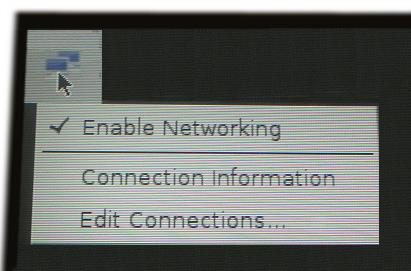
Click the Network Manager icon in the top-left corner of the desktop and choose Edit Connections.
Edit the network settings as required. For example, you may want to specify the IP address of the application computer, the default gateway or DNS server.
If you need to set up a proxy connection for MT Showcase, go to the next section. Otherwise, you now need to configure MT Showcase; go to Configure MT Showcase.
Using a Proxy Server
If your office uses a proxy server for internet connections, you must configure MT Showcase and, optionally, OpenVPN and apt to use the proxy server.
Important
If your office uses a proxy server, web browser widgets cannot access the internet until you have set up a proxy connection for the application computer.
Set Up a Proxy Connection for MT Showcase
Follow these steps on the application computer.
Ubuntu application computers:
Access the desktop; see Access the Desktop.
Right-click the desktop and launch a terminal emulator.
Edit the
/etc/environmentconfiguration file using an editor such as nano or vim. For example:$ sudo vim /etc/environment
Append the following lines to this file:
http_proxy=http://<proxy_name>:<proxy_port>
https_proxy=https://<proxy_name>:<proxy_port>
Where
<proxy_name>is the name or IP address of your proxy server and<proxy_port>is the port for the proxy server.Save the file and exit the editor.
Restart the application computer.
Windows application computers:
Go to the Network & Internet applet in Windows Settings.
Go to the Proxy page. Then go to the Manual proxy setup section.
Set Use a proxy server to On.
Save the new settings and close Windows Settings.
Set Up a Proxy Connection for apt
(Supported on Ubuntu application computers only)
You will need apt to install OpenVPN and the MultiTaction tool for configuring OpenVPN,
mt-canvus-setup.
To permanently configure apt to use a proxy server, we recommend specifying the proxy
server in a separate file under /etc/apt/apt.conf.d/ -- we do not recommend specifying
the proxy server in apt.conf.
Follow these steps on the application computer.
Access the desktop; see Access the Desktop.
Right-click the desktop and launch a terminal emulator.
Create the
/etc/apt/apt.conf.d/30proxyconfiguration file using an editor such as nano or vim. For example:$ sudo vim /etc/apt/apt.conf.d/30proxy
Add the following line to this file:
acquire::http::Proxy "http://[<user>:<password>@]<proxy_name>:<proxy_port>/";
Where:
[<user>:<password>@]specify the name and password of a valid user account for accessing the proxy server. If your proxy server does not require authentication, you can omit these details.<proxy_name>is the name of your proxy server.<proxy_port>is the port for the proxy server. For example, 8080.
For example:
acquire::http::Proxy "http://srimmel:ad3jk8z6@proxy.unipraxis.com:8080/";
Save the file and exit the editor.
Restart the application computer.
Set Up a Proxy Connection for OpenVPN
(Supported on Ubuntu application computers only)
MultiTaction support staff use OpenVPN to remotely collect diagnostic data (log files, crash dumps, and so on) if issues arise on your MT Showcase installation. From the OpenVPN article on Wikipedia:
"OpenVPN is an open-source software application that implements virtual private network (VPN) techniques for creating secure point-to-point or site-to-site connections in routed or bridged configurations and remote access facilities."
To allow MultiTaction support staff to remotely access your application computer, we recommend that you install OpenVPN and enable it for remote access.
If you want to enable remote access and your office uses a proxy server for internet
connections, you must configure OpenVPN to use the proxy server. MultiTaction provide
the mt-canvus-setup tool for configuring OpenVPN.
Note
mt-canvus-setup is a legacy name; it is not a typo. MultiTaction do not currently
provide a configuration tool named mt-showcase-setup.
Follow these steps on the application computer:
Run this command to install OpenVPN and
mt-canvus-setup:$ sudo apt-get install mt-canvus-setup
Run this
mt-canvus-setupcommand to enable remote access for OpenVPN:$ sudo mt-canvus-setup --enable-remote-access
Note
If you subsequently want to disable remote access, run:
$ sudo mt-canvus-setup --disable-remote-access
Locate the OpenVPN configuration file:
/etc/openvpn/mt-canvus.conf.availableUsing your preferred editor, edit
mt-canvus.conf.available:Delete the following lines:
remote nexus.multitouch.fi 443
resolv-retry infinite
nobind
Add the following lines, including the
<connection>tags:<connection> remote nexus.multitouch.fi 443 nobind </connection> <connection> remote nexus.multitouch.fi 443 tcp http-proxy <proxy name> <proxy port> http-proxy-retry nobind </connection>
Where
<proxy_name>is the name or IP address of your proxy server and<proxy_port>is the port for the proxy server. (This is typically 2138.)
Tip
The OpenVPN
<connection>tag defines a client connection profile -- a group of options that collectively define a connection to a specific OpenVPN server. If an OpenVPN configuration file contains multiple connection profiles, an OpenVPN client will try each profile sequentially until it successfully connects to a server. Full details are in the OpenVPN 2.4 manual.Do one of the following:
Run this command to restart OpenVPN:
$ sudo service openvpn restart
Run these commands to re-enable remote access:
$ sudo mt-canvus-setup --disable-remote-access
$ sudo mt-canvus-setup --enable-remote-access
Install MT Showcase on Ubuntu Systems
(Applies to Ubuntu application computers only)
You can install MT Showcase from an installation package or by using the apt utility.
Note
Do not start the MT Showcase client immediately after installation. You must first perform some essential configuration tasks.
Install from an Installation Package
Follow these steps:
Browse to the MultiTaction Downloads page:
Register on the MultiTaction Cornerstone web site: https://cornerstone.multitouch.fi/
Contact MultiTaction Sales and request access to the Downloads page: https://www.multitaction.com/support-services
Launch a browser on the application computer and log on to the MultiTaction Cornerstone web site (see step 1.a).
Browse to the Downloads page: https://cornerstone.multitouch.fi/mt-showcase-downloads
Download the MT Showcase installer onto the application computer. The installer filename is similar to this example:
mt-showcase-1.9.0-build6728-Ubuntu-14.04-amd64.shRun the following command to execute MT Showcase installation script. This method installs both the MT Showcase server and client.
$ sudo sh <file>
Where
<file>is the installer you downloaded in step 2. For example:$ sudo sh mt-showcase-1.9.0-build6728-Ubuntu-14.04-amd64.sh
Install Using the apt Command
This section describes how to install the MT Showcase server and client using Ubuntu's
apt command line utility. Follow these steps:
Right-click the desktop on the application computer and launch a terminal emulator.
Run the following command to enable the mt-software-stable repository:
$ echo "deb [arch=amd64] http://update.multitouch.fi/mt-stable stable main" | sudo tee /etc/apt/sources.list.d/mt-software-stable.list
Run the following command to set appropriate read and write permissions for the mt-software-stable repository:
$ sudo chmod 644 /etc/apt/sources.list.d/mt-software-stable.listRun the following command to download the latest MT Showcase installation package:
$ sudo apt-get update
Run the following command to install MT Showcase:
$ sudo apt-get install mt-showcase-<n.n.n>
Where
<n.n.n>is the MT Showcase version number. For example, to install MT Showcase 1.9.0, run:$ sudo apt-get install mt-showcase-1.9.0
Install MT Showcase on Windows Systems
(Applies to Windows application computers only)
Follow these steps:
Browse to the MultiTaction Downloads page:
Register on the MultiTaction Cornerstone web site: https://cornerstone.multitouch.fi/
Contact MultiTaction Sales and request access to the Downloads page: https://www.multitaction.com/support-services
Launch a browser on the application computer and log on to the MultiTaction Cornerstone web site (see step 1.a).
Browse to the Downloads page: https://cornerstone.multitouch.fi/mt-showcase-downloads
Download the MT Showcase installer onto the application computer. The installer filename is similar to this example:
mt-showcase-1.9.0-build6728.exeRun the MT Showcase installer.
When the MT Showcase Setup Wizard launches:
Choose the installation folder.
Step through the wizard screens and click Install.
An MT Showcase shortcut is added to the Windows desktop:

MT Showcase Windows desktop shortcut
If you need to set up a proxy connection for MT Showcase, see the proxy server section above. Otherwise, you now need to configure MT Showcase; go to Configure MT Showcase.