Sounds
Sounds (or sound effects) can be an important part of your users' MT Showcase experience. For example, playing a sound when a widget closes may provide feedback for users, or you can use sounds to reinforce your branding or for entertainment purposes.
MT Showcase apps can play a sound (a WAV file) when a widget opens and closes, and when a user touches the widget with their hand or infrared pen. Apps can also loop a sound continuously while a widget is open, or while the app is running.
MT Showcase supports interaction sounds and widget sounds:
Interaction sounds: You can play a WAV file when a user touches a widget with their hand or infrared pen. If you add multiple sounds, one sound is played at random each time. You can assign interaction sounds to individual widgets, or you can set global interaction sounds for all widgets.
Widget sounds: You can add a WAV file that plays when a user opens or closes a widget, or that loops while a widget is open. You can also loop a background sound continuously while the app is running. If you add multiple Open and Close sounds, one sound is played at random each time. If you add multiple Background sounds, they play in a random sequence by default, but you can choose to play them in a fixed sequence.
In both cases, you can set the volume for these sounds and, if set up for your video wall, enable positional audio (sounds are directed to the nearest speaker).
Guidelines
For optimum impact, sound effects should be used sparingly and appropriately. If you add too many sounds to your app, especially sounds that loop while a widget is open or while the app is running, your users may find the audio output excessive or distracting.
By default, when you add a widget to your app's structure, its sounds are set to None. However, if you define default sounds in a theme (by editing the Widget Behavior theme default), then sounds are effectively "switched on" for all widgets in your app.
Keep all touch sounds and open/close sounds very short (less than one second). We also recommend that you make them non-verbal, moderate volume, and pleasant, not jarring. For example, use subtle beeps or clicks to provide users with auditory feedback.
Add Sounds to Your Media Library
Before you can add sounds to your app, you need to drag the WAV files into your media library.
Note
MT Showcase does not currently support MP3 files. If you want to use MP3 files, you will need to use a media converter app or website to convert them to WAV files.
Add Sounds to an Individual Widget
This section describes how to create two shared widgets (interaction sounds and widget sounds) and assign them to an individual widget. For example, to assign sounds to the web browser in My First Structure, follow these steps:
Edit the widget attributes:
Click Structures in the left-hand menu.
Click the My First Structure hyperlink.
In the Main section, click the Web browser widget.
Add a new Widget sounds widget.
In the Web browser attributes pane, go to the Widget sounds attribute.
Click the New button.
In the Add a new widget pop-up, click the Add button.
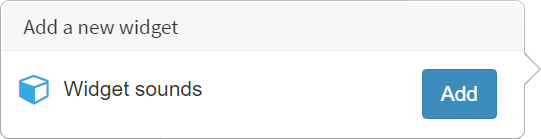
Add a new widget pop-up for Widget sounds.
Type a name for the Widget sounds widget. For example, My widget sounds.
Click the Save button.
Edit the widget sounds.
Click the Edit button to display the Editing a widget screen.
In the right-hand attributes pane, select Use a fixed value for each attribute you want to edit.
Drag sound files from the media library into the Open sound and Close sound. These sounds play when a widget opens and closes (for example, when it is included in a finger menu). If you add multiple sounds, one sound is played at random each time.
Edit the Background sound and Shuffle background sounds attributes as required. These attributes loop sounds and are described in Loop Sounds Continuously.
Enable the Positional audio attribute if your video wall has been set up for positional audio (i.e., sounds are output to the closest physical speakers).
Set the Sound volume. You typically enter a value from 0 to 1. This value is a multiplier for the native volume (or loudness) of the audio files, where 0 is silence and 1 is normal volume for the file. Or you can enter a value higher than 1 to play sounds louder than their native volume. For example, 1.5 means sounds are 50% louder than normal.
Note
The actual volume heard by users also depends on volume settings for your application computer and speakers.
Add a new Interaction sounds widget.
In the Web browser attributes pane, go to the Interaction sounds attribute.
Click the New button.
In the Add a new widget pop-up, click the Add button.
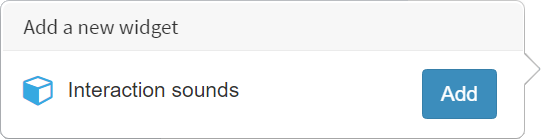
Add a new widget pop-up for Interaction sounds.
Type a name for the Interaction sounds widget. For example, My interaction sounds.
Click the Save button.
Edit the interaction sounds.
Click the Edit button to display the Editing a widget screen.
In the Editing a widget screen, go to the right-hand attributes pane.
For each attribute you want to edit, select Use a fixed value.
Drag sound files from the media library into the Touch sound and Pen sound attributes. These sounds play when a user touches a widget with their hand or infrared pen. If you add multiple sounds, one sound is played at random each time.
Edit the Positional audio and Sound volume attributes as required; see step 3 for details.
Click Save and go back to the Editing a Structure screen.
Click the Save button to save the changes to your app's structure.
Loop Sounds Continuously
The previous sections described how to add sounds that play once (for example, when a widget opens or when a user touches a widget). But you can also add background sounds that loop continuously.
Continuous sound while a widget is open: You can add a background sound to an individual widget. This sound loops while the widget is open.
Continuous sound while an app is running: You can add a background sound to the Background layer of your app. This sound loops while the app is running.
In both cases, you can add multiple background sounds. By default, they all get played continuously in a random sequence, but if required you can disable the shuffle so they play continuously in a fixed sequence (i.e., in the order they are listed).
Loop Sounds While a Widget Is Open
This section describes how to loop sounds while a widget is open. For example, to loop sounds while the web browser in My First Structure is open, follow these steps:
Edit the widget attributes:
Click Structures in the left-hand menu.
Click the My First Structure hyperlink.
In the Main section, click the Web browser widget.
In the Web browser attributes pane, go to the Widget sounds attribute and select My widget sounds from the drop-down list.
Click the Edit button to display the Editing a widget screen.
In the right-hand pane, edit the Background sound attribute. These sounds play while the widget (in this example, a web browser) is open. If you add multiple sounds, by default they all get played in a random sequence.
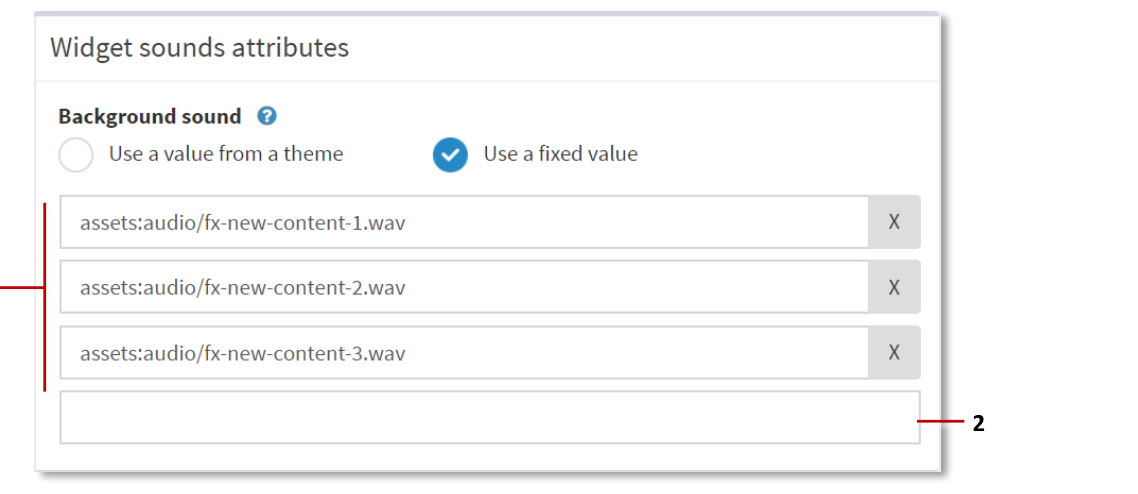
Widget Sounds, Background sound attribute with multiple sounds (1). Each time you add an extra sound, the Editor automatically creates a new empty input field (2).
Click the Show advanced attributes hyperlink.
(Optional) Disable the Shuffle background sounds attribute. If you added multiple background sounds in step 4, the shuffle is enabled by default and background sounds play in a random order. But you can disable the shuffle to play background sounds in a fixed sequence (i.e., the order in which they are listed).
Select Use a fixed value.
Select the Enabled check box.
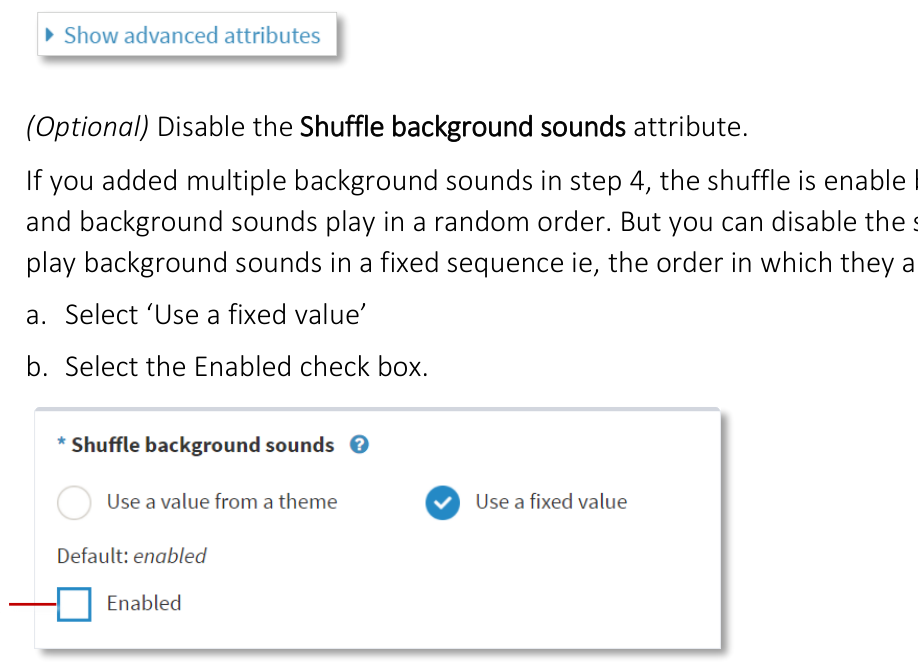
Widget Sounds, Shuffle background sounds attribute. Clear the Enabled check box (1) to turn off the shuffle feature and play background sounds in a fixed sequence.
Click Save and go back to the Editing a Structure screen.
Click the Save button to save the changes to your app's structure.
Loop Sounds While an App Is Running
This section describes how to loop sounds continuously while an app is running.
Follow these steps:
Click Structures in the left-hand pane.
Click the structure you want to edit. For example, My First Structure. The Editing a Structure screen opens.
Go to the Background section and click Add a new widget to Background.
From the pop-up widget menu, add Widget sounds.
In the right-hand Widget sounds attributes pane:
Edit the Background sound and Shuffle background sounds attributes. These attributes were described in the section above.
Set the Open sound and Close sound attributes to Use a fixed value but leave the input fields empty. This effectively sets these attributes to null and ensures they cannot inherit any sounds defined in your theme.
Click the Save button to save the changes to your app's structure.
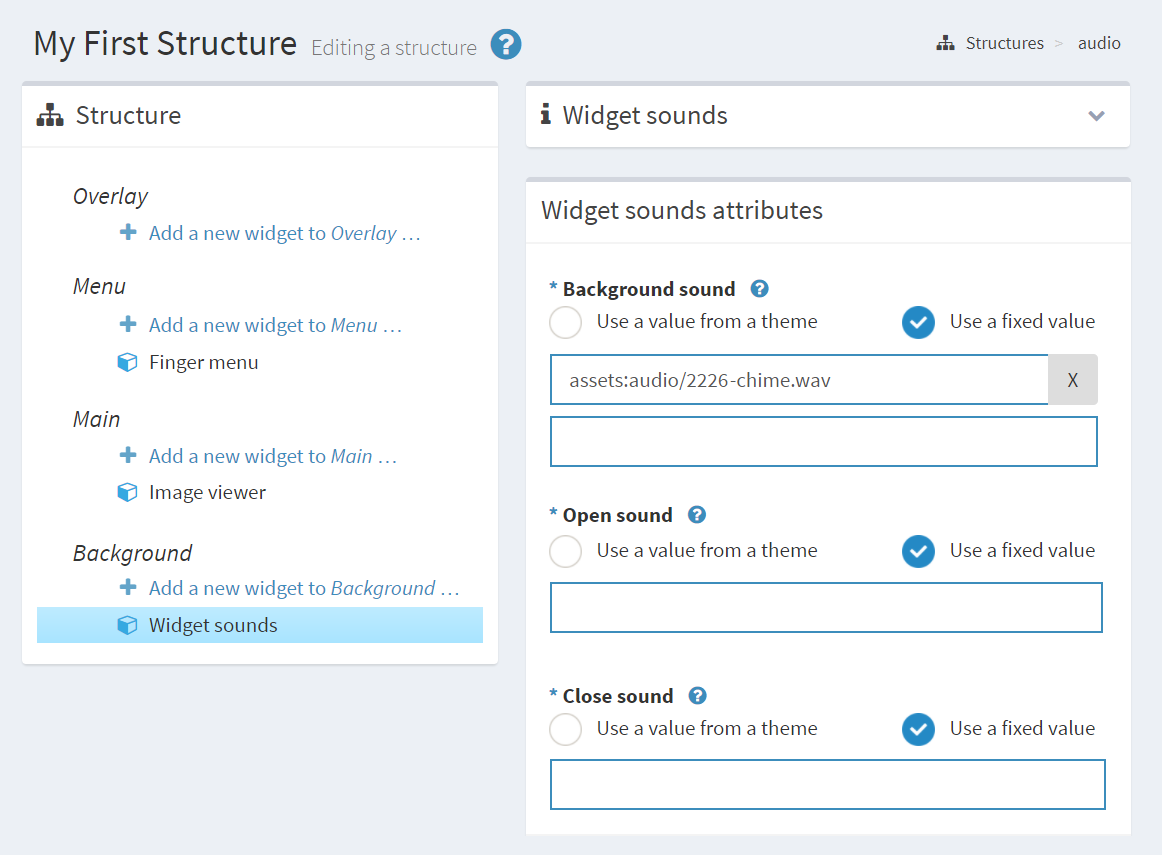
Editing a structure screen. 1 Background layer. 2 Widget Sounds widget. Background sound, with audio file added (3). A new, empty input field is added automatically (4). Open sound and Close sound attributes are null -- set to Use a fixed value (5) but no audio files added (6).
Set Default Sounds
There are two main ways to define default sounds in your app. You can set custom sounds for different types of widget (for example, menu bubbles or video viewers). And you can set global sounds, applicable to any widget that has no custom sounds defined. Both approaches require you to edit a theme. See the following sections for details.
Note
In all cases, you can override any default sounds by directly editing a widget's Interaction Sounds or Widget Sounds in your app's structure.
Set Custom Sounds for Different Types of Widget
You can assign different sounds to each type of widget. For example, you can set a custom Touch sound for all menu bubbles by editing the Interaction sounds attribute for the Menu bubbles component in your theme. Likewise, you can set a custom Open sound for all videos by editing the Widget sounds attribute for the Video Viewer component.
In each case, when you edit the Widget sounds or Interaction sounds attribute, you must choose a shared widget from your widget library (or create a new one).
Note
Custom sounds for widget types only get played if the following condition is true: The sound attributes for a widget in the app's structure are set to Use a value from a theme. In the case of menu bubbles, the menu in the app's structure must use a menu item type whose sound attributes are set to Use a value from a theme.
The following instructions show how to add custom sounds to menu bubbles.
Follow these steps:
Click Themes in the left-hand pane.
In the Themes screen, click the theme you want.
In the Editing a theme screen, go to the Menu bubbles component.
Tip
Click the hyperlink in the Components pane.
Set the following attributes:
Widget sounds: Select an existing shared widget from the drop-down menu or create a new one. These shared widgets play sounds when a widget opens or closes. They can also loop sounds while a widget is open.
Interaction sounds: Select an existing shared widget from the drop-down menu or create a new one. These shared widgets play sounds when a user touches a widget with their hand or infrared pen.
Tip
You created the My widget sounds and My interaction sounds shared widgets in the section above.
Click Save to save the changes to your theme.
Set Global Sounds for All Widgets
You can set global sounds, applicable to any widget that has no custom sounds defined. To do this, you must edit the Widget sounds and Interaction sounds attributes for the Widget Behavior theme default. In both cases, when you edit the attribute, you must choose a shared widget from your widget library (or create a new one).
Note
Global sounds only get played if all the following conditions are true:
The sound attribute for a widget (such as a Video Viewer) in the app's structure is set to Use a value from a theme, and
The sound attribute for the corresponding component in your app's theme (such as the Video Viewer component) is set to Value not set.
Follow these steps:
Click Themes in the left-hand pane.
In the Themes screen, click the theme you want.
In the Editing a theme screen, go to the Widget behavior theme default.
Set the following attributes:
Widget sounds: Select an existing shared widget from the drop-down menu or create a new one. These shared widgets play sounds when a widget opens or closes. They can also loop sounds while a widget is open.
Interaction sounds: Select an existing shared widget from the drop-down menu or create a new one. These shared widgets play sounds when a user touches a widget with their hand or infrared pen.
Tip
You created the My widget sounds and My interaction sounds shared widgets earlier in this chapter.
Click Save to save the changes to your theme.
Turn Off Sounds for an Individual Widget
You can turn off sounds for an individual widget by editing its sound attributes in your app's structure.
Follow these steps:
Click Structures in the left-hand menu.
Click the structure you want to open the Editing a structure screen.
In the left-hand pane, click the widget that you want to silence.
In the right-hand attributes pane:
Go to the Interaction sounds attribute and select None from the drop-down list.
Go to the Widget sounds attribute and select None from the drop-down list.
Click the Save button.
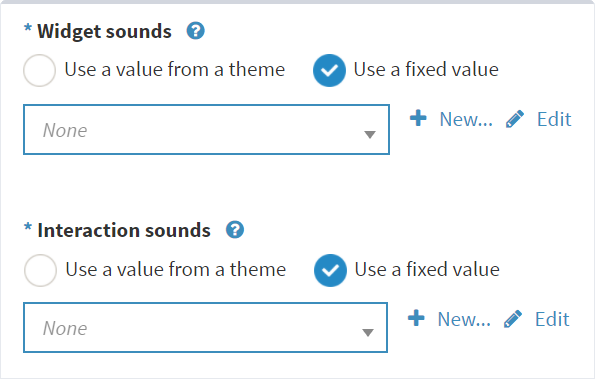
1 Widget sounds and Interaction sounds attributes set to None. 2 Drop-down menu selector.