Twitter Feeds
You can add a Twitter feed to your app based on search terms defined by you. For example, you can add a Twitter feed that displays tweets relating to MultiTaction iWall or @multitaction. To enable Twitter feeds, you must also add the Twitter Connection service to your MT Showcase app.
Note
MT Showcase can only retrieve tweets; it cannot post tweets on behalf of the Twitter account being used and it cannot access the Twitter account's personal data.

Example Twitter cloud. 1 Tap an individual tweet to detach and enlarge it.
- align
center
- alt
Detached tweet detail
Detached tweet, enlarged for reading.
Setup Overview
The full setup involves these steps:
Create a Twitter app: The Twitter app enables the Twitter Connection service to access Twitter and generate Twitter feeds for your MT Showcase apps. See Create a Twitter App.
Set up the Twitter Connection service: You need this service to enable Twitter feeds in your MT Showcase apps. When setting up the service, you will need to add the consumer key and consumer secret from your Twitter app. These are needed to authenticate communication between the Twitter Connection service and Twitter itself when searching for tweets. You will also need to authorize your Twitter app to use a designated "runtime" Twitter account when searching for relevant tweets. See Set Up the Twitter Connection Service.
Add a Twitter feed to your MT Showcase app. When adding a Twitter feed, you will need to add a Twitter Feed widget to a content set. At this stage, you can specify search terms to filter the tweets. You must then assign the content set to a finger menu or cloud widget. See Add a Twitter Feed to Your App.
Create a Twitter App
First, you must create a Twitter app on Twitter's Application Management site. The Twitter Connection service will use this app to access Twitter and generate the Twitter feed displayed in your MT Showcase app.
Full instructions are in the MT Showcase Installation Manual.
Set Up the Twitter Connection Service
The Twitter Connection service allows you to add Twitter feeds to your MT Showcase apps, with tweets displayed either in a cloud widget or finger menu.
You set up the Twitter Connection service in the Editor's Editing a service set screen. First you add the service to a service set. Then you supply the consumer key and consumer secret for your Twitter app. You must also authorize the Twitter app to use a designated runtime Twitter account.
Finally, remember to add the service set that contains the Twitter Connection service to your MT Showcase app.
Note
You only need one Twitter Connection service to supply multiple Twitter feeds in your MT Showcase apps.
Retrieve the Consumer Key and Consumer Secret
The consumer key and consumer secret were generated automatically when your Twitter app was created. The Twitter Connection service needs the consumer key and consumer secret to authenticate communication with Twitter when searching for tweets.
To retrieve these details from your Twitter app, follow these steps:
Go to Twitter's Application Management site: https://apps.twitter.com
Log in to Twitter with the Twitter account you used to create the Twitter app. If you are already logged in to Twitter, the Twitter Apps page displays immediately.
In the Twitter Apps page, click the name of your Twitter app.
When the Details page for your Twitter app opens, click the tab for the Keys and Access Tokens page.
When this page opens, make a note of the Consumer Key and the Consumer Secret.
Tip
Copy and paste the key and secret to a temporary location.
Add the Twitter Connection Service to a Service Set
Follow these steps:
In the MT Showcase Editor, click Service Sets in the left-hand pane.
Either click an existing service set (for example, My Service Set), or create a new service set.
In the Editing a service set screen, go to the Add new service section:
Select Twitter connection from the Select Service drop-down menu.
Enter a name for the new Twitter connection service. We recommend you choose a service name to match the name of your Twitter app.
Click the Add button.
Click the Save button to save the Twitter connection service in your service set.
Now add the consumer key and consumer secret to the service; continue to the next section.
Add the Consumer Key and Consumer Secret
The Twitter Connection service needs the Twitter app's consumer key and consumer secret to authenticate communication with Twitter when searching for tweets.
Follow these steps:
In the MT Showcase Editor, click Service Sets in the left-hand pane.
Select the service set that contains the Twitter Connection service. For example, My Service Set.
In the Editing service set screen, go to the Twitter Connection section.
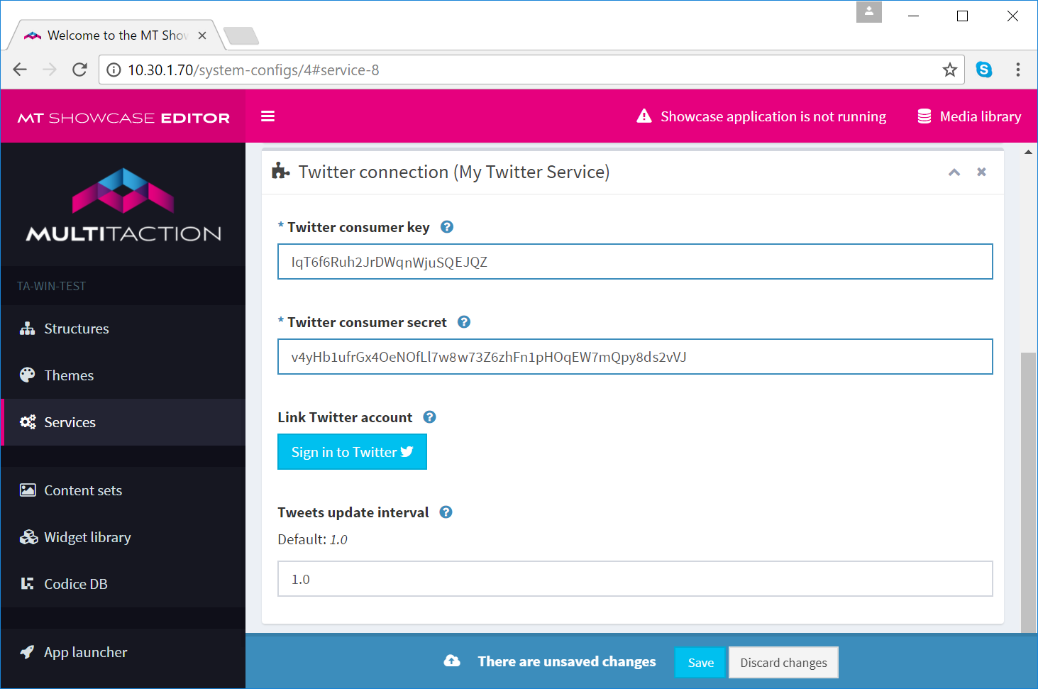
Editing a service set screen, Twitter Connection section. 1 Twitter consumer key. 2 Twitter consumer secret. 3 Sign in to Twitter button. 4 Save button.
In the Twitter connection section:
Enter the Twitter consumer key and Twitter consumer secret for the Twitter app that you will use. Enter these values exactly as they appeared in the Twitter Application Management website.
Important
We recommend that you copy and paste the key and secret directly from the Twitter Application Management website to avoid typing errors. Be careful not to copy and paste any leading or trailing white spaces.
(Optional) Edit the Interval between new tweets setting. The Twitter connection service regularly searches for new tweets and, if it finds any, loads them into the Twitter feed one at a time. By default, it adds one new tweet (and removes an old tweet) every second, but you can optionally set a longer interval.
Click the Save button.
Important
Do not skip this save! You must save the consumer key and consumer secret before you can authorize the Twitter connection service to log into Twitter in the next step.
Now authorize the app to use a Twitter account; continue to the next section.
Authorize the App to Use a Twitter Account
The Twitter Connection service uses your Twitter app to access Twitter and retrieve relevant tweets for a Twitter feed. However, this Twitter app will need a valid Twitter account to connect to Twitter. You must now authorize the Twitter app to use a designated runtime Twitter account.
Follow these steps:
In the MT Showcase Editor, click Service Sets in the left-hand pane.
Select the service set that contains the Twitter Connection service. For example, My Service Set.
In the Editing service set screen, go to the Twitter Connection section.
Go to the Authorize access to Twitter setting and click the Sign in to Twitter button.
The next step depends on whether (i) you are already logged into Twitter and (ii) the Twitter app is already authorized to use a Twitter account.
If you are already logged into Twitter and your Twitter app is already authorized to use a Twitter account, no further input is required. When you click the Sign in to Twitter button, Twitter automatically redirects you to the MT Showcase Editor. Go directly to step 8.
If you are already logged into Twitter but your Twitter app has not been authorized to use a Twitter account, go to step 6.
If you are not currently logged into Twitter, go to step 7.
(Applies only if you are already logged into Twitter but your Twitter app has not been authorized to use a Twitter account.)
The Authorize [App] to use your account? screen now displays. This screen prompts you to authorize the app to use your current Twitter account. For example, if you are currently logged into Twitter as @MultiTactionTweetFinder, your Twitter app will use this account when searching for tweets.
Click the Authorize app button. You are then redirected back to the MT Showcase Editor.
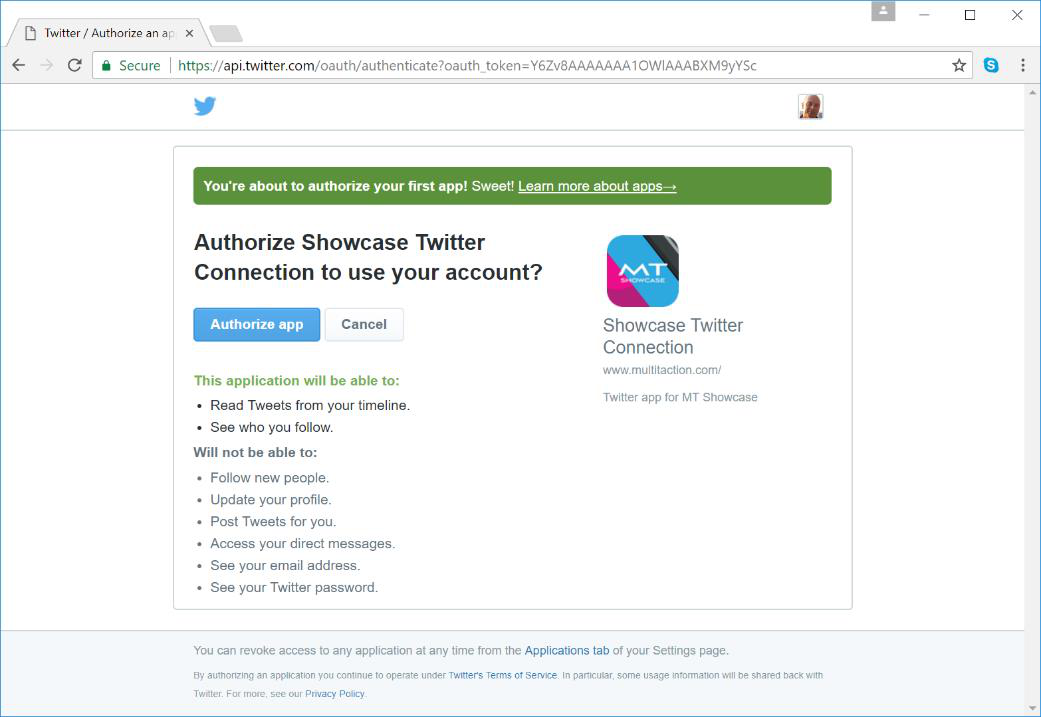
Example "Authorize [App] to use your account?" screen. 1 Authorize app button.
(Applies only if you are not already logged into Twitter.)
The Authorize [App] to use your account? screen now displays. This screen prompts you to sign in to Twitter. The Twitter app will use the account you enter here. For example, if you sign into Twitter as @MultiTactionTweetFinder, the Twitter app will be automatically authorized to use this account when searching for tweets.
Enter the Twitter account name and password.
Click the Sign In button.
You are now redirected back to the MT Showcase Editor.
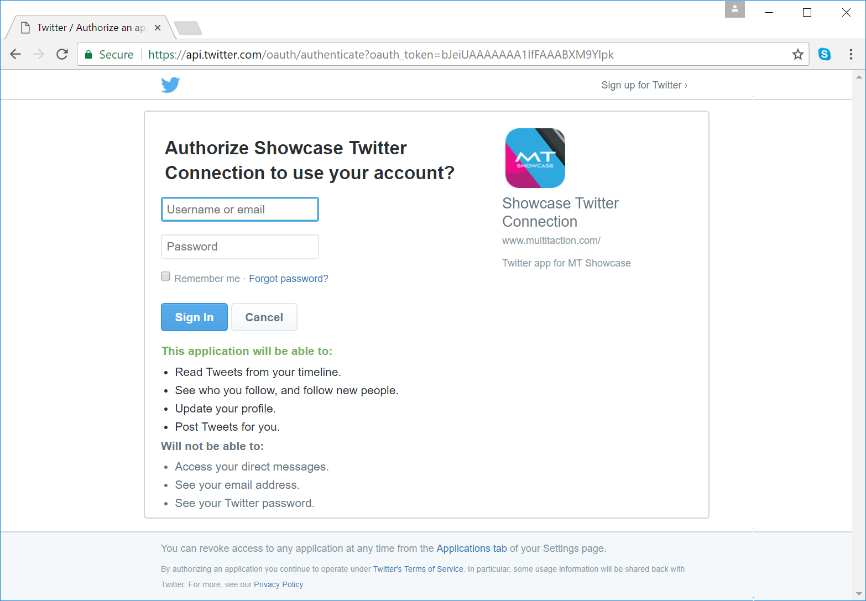
Example "Authorize [App] to use your account?" screen. 1 Twitter account name and password. 2 Sign In button.
Save the service set with your new Twitter Connection service.
Add the Twitter Connection Service to Your App
After setting up the Twitter Connection service, you must add the service set that contains this service to your app.
Add a Twitter Feed to Your App
Adding a Twitter feed to your app is a three-step process:
Add the Twitter Connection service to your app (see above).
Add the Twitter Feed widget to a content set (see below). At this stage, you can set a visible name for the Twitter feed and specify search terms to filter the tweets.
Assign the content set to a finger menu or cloud widget in your app's structure.
Note
You can filter the Twitter feed to remove unwanted or inappropriate tweets; see Filter the Twitter Feed.
MT Showcase can only retrieve tweets; it cannot post tweets on behalf of the Twitter account being used and it cannot access the Twitter account's personal data.
Create a Twitter Feed Content Set
Follow these steps:
Create a content set:
Click Content sets in the left-hand pane.
Enter the name of the new content set. For example, Twitter Feed Content Set.
Click the Create New button.
In the Editing a content set screen:
Click the root folder.
Click the Add button.
From the pop-up Add new content menu, add a Twitter Feed to the content set.
In the right-hand Content Attributes pane:
Set the Maximum tweet count. Specify the maximum number of tweets that can be shown in a Twitter cloud or in a finger menu. Note that tweets are refreshed continuously. (The Twitter feed refresh frequency is defined in the Twitter Connection service.)
Set the Visible name for your Twitter feed. This name is used as the label for the central bubble if you launch the Twitter feed from a finger menu. Choose a name that reflects the type of tweets you want to display. For example, MultiTaction iWall.
Define the Search terms for your Twitter feed. For example:
multitactionfinds tweets with MultiTaction, multitaction or MULTITACTION.multitaction iWallfinds tweets with MultiTaction AND iWall.multitaction OR iWallfinds tweets with MultiTaction OR iWall (or both).multitaction -iWallfinds tweets with MultiTaction but not iWall.from:MultiTactionfinds tweets sent by the MultiTaction account."MultiTaction Cells"finds tweets with the exact phrase "MultiTaction Cells".#multitactionfinds tweets containing the hashtag "multitaction".
For more search filters, see Search Filters.
Click the Save button to save your new Twitter Feed content set.
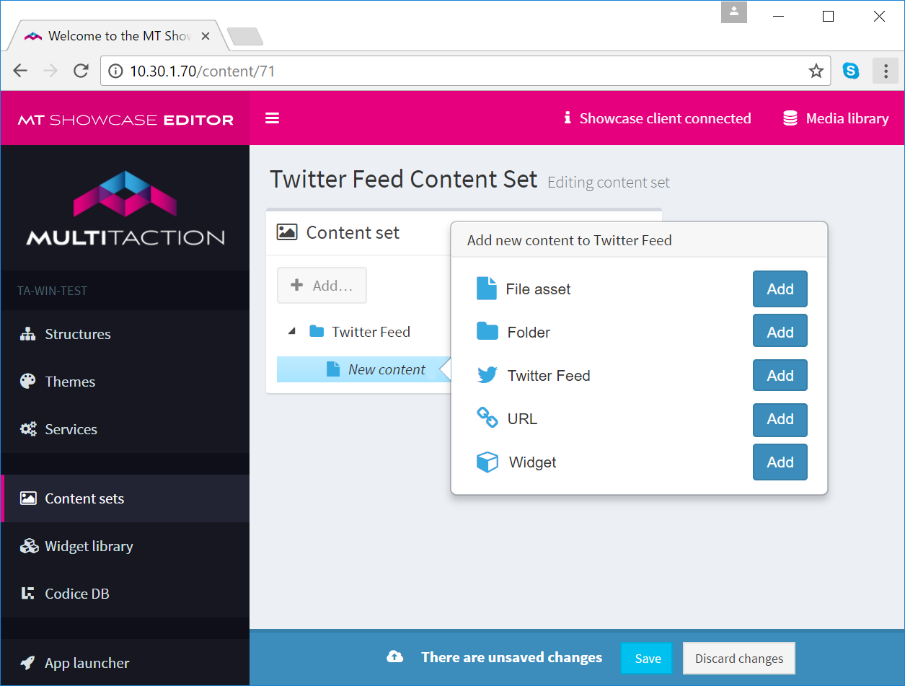
Editing a content set screen. Adding a Twitter Feed to a content set. 1 Add button. 2 Root folder. 3 New content set item (the Twitter feed is added here). 4 Pop-up "Add new content" menu. 5 Add a Twitter Feed to the content set.
You can now assign this content set to a cloud widget or finger menu.
Set Up a Twitter Cloud
You can add a Twitter cloud to your app. The Twitter cloud comprises a ball of individual tweets that match the specified search terms. To create a Twitter cloud, you simply add a Cloud widget and assign the Twitter content set you created previously.
Follow these steps:
Add a cloud widget to your app's structure.
Go to the Main section of the Editing a structure screen and click the Cloud widget.
Rename the Cloud widget. For example, My Twitter Feed.
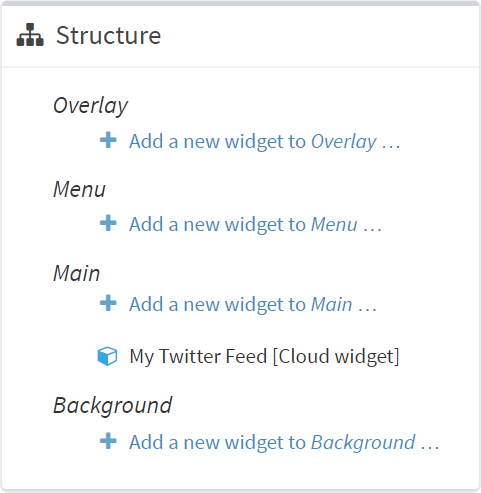
Edit a structure screen. 1 Twitter cloud (Cloud widget using a Twitter Feed content set).
In the Cloud widget attributes pane, go to the Content set attribute.
Select the content set you created previously, Twitter Feed Content Set, from the drop-down menu.
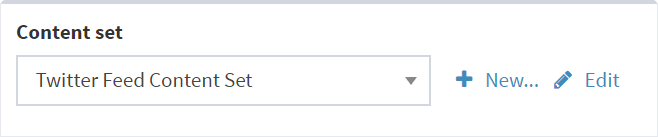
Cloud widget attributes: Content set attribute.
Click the Save button to add the Twitter cloud to your app.
Set Up a Twitter Finger Menu
You can add a Twitter finger menu to your app. Menu items comprise individual tweets that match the specified search terms. To create a Twitter finger menu, you simply add a finger menu and assign the Twitter content set you created previously.
Add a finger menu to your app's structure.
Go to the Menu section of the Editing a structure screen and click the Finger menu.
Rename the Finger menu. For example, My Twitter Menu.

Edit a structure screen. 1 Twitter menu (Finger menu using a Twitter Feed content set).
In the Finger menu attributes pane, go to the Content set attribute.
Select the content set you created earlier, Twitter Feed Content Set, from the drop-down menu.
Click the Save button to add the Twitter menu to your app.
Filter the Twitter Feed
There may be occasions when your Twitter feed retrieves tweets that are inappropriate. To remedy this, you can filter the tweet search and/or remove unwanted tweets by tapping them with a tweet blocker Codice card.
Add a Search Filter to the Twitter Feed Content Set
You can filter the tweet search by editing the search terms in the Twitter feed content set. Follow these steps:
Click Content sets in the left-hand pane.
Select your Twitter feed content set. For example, Twitter Feed Content Set.
In the Editing a content set screen, edit the Search Terms attribute in the right-hand pane.
Edit the search terms for your Twitter feed using any of the supported search filters (see below).
Search Filters
The MT Showcase Editor supports the standard Twitter search filters. For example, use the following filters when editing the Search Terms attribute to filter the tweets retrieved in the Twitter feed.
- Tweets from a specific account
Use
from:<account>to find tweets sent by a specific Twitter account. For example:from:MultiTactionfinds tweets sent by the MultiTaction account.- Tweets replying to a specific account
Use
to:<account>to find replies to tweets from a specific Twitter account. For example:to:MultiTactionfinds tweets replying to tweets from MultiTaction.- AND
A space between search terms is an AND operator. For example:
multitaction iWallfinds tweets with MultiTaction AND iWall.- OR
Type
ORbetween search terms for an OR operator. For example:multitaction OR iWallfinds tweets with MultiTaction OR iWall (or both).- NOT
Prefix a search term with a minus sign for a NOT operator. For example:
multitaction -iWallfinds tweets with MultiTaction but not iWall.iWall -from:MultiTactionfinds tweets with iWall but excludes "iWall" tweets sent by the MultiTaction account.- Retweets
Use
-filter:retweetsto exclude retweets.- Safe searches
Add
filter:safeto only retrieve safe tweets.- Hashtags
To retrieve tweets with a specific hashtag, simply add the hashtag as a search term:
#multitactionfinds tweets containing the hashtag "multitaction".- Upper case or lower case?
Search terms are not case-sensitive and don't need quotes. For example:
multitactionfinds tweets with MultiTaction, multitaction or MULTITACTION.- Exact phrases
Use double quotes to find tweets containing phrases. For example:
"MultiTaction Cells"finds tweets containing the exact phrase "MultiTaction Cells".- Can I combine filters?
Yes. You can combine multiple filters to create a complex search term. For example:
"touch displays" OR iWall -from:MultiTaction -filter:retweetsfinds tweets with "touch displays" or "iWall", but excludes such tweets sent by the MultiTaction account and also excludes retweets.
Remove Tweets with a Codice Card
You can designate any Codice as a "tweet blocker". This enables users to remove such tweets from the app by simply tapping them with a tweet blocker Codice card.
Note
If you restart MT Showcase, a banned tweet can potentially reappear in the Twitter feed if it has not been supplanted by more recent feeds.