Annotations
The Annotation feature allows users to draw directly on the app background or on individual widgets with their finger or an infrared pen.
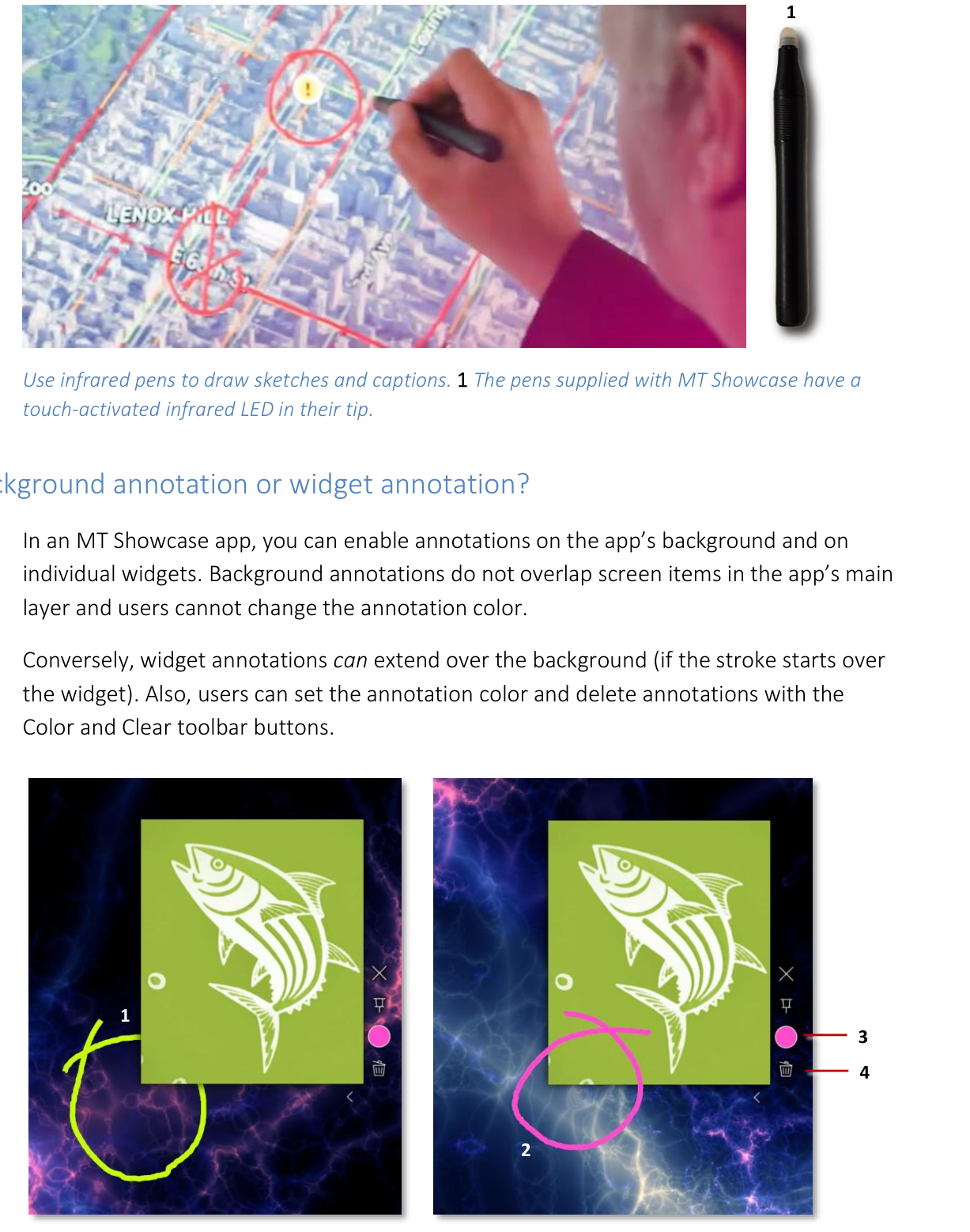
Use infrared pens to draw sketches and captions. The pens supplied with MT Showcase have a touch-activated infrared LED in their tip.
Background Annotation or Widget Annotation?
In an MT Showcase app, you can enable annotations on the app's background and on individual widgets. Background annotations do not overlap screen items in the app's main layer and users cannot change the annotation color.
Conversely, widget annotations can extend over the background (if the stroke starts over the widget). Also, users can set the annotation color and delete annotations with the Color and Clear toolbar buttons.
- align
center
- alt
Background annotations compared to widget annotations
1 Background annotations do not overlap widgets. 2 Widget annotations can extend over the app background. 3 Color button. 4 Clear button. These buttons apply to widget annotations only.
- align
center
- alt
Annotations example showing Color and Clear buttons
Widget annotations with Color and Clear toolbar buttons.
Enable Annotations
In an MT Showcase app, you can enable annotations on the app's background and on individual widgets.
Enable Background Annotations
These annotations display on the app background only.
Note
You cannot draw background annotations on top of items in the app's main layer (i.e., on top of screen items such as an image or web browser). If any background annotations overlap these screen items, the annotations display behind these items.
Follow these steps:
Edit a structure.
Click Structures in the left-hand menu.
Click the structure you want to edit. For example, My First Structure. The Editing a Structure screen appears.
Add the annotation widget to the background level.
Go to the Background section and click Add a new widget to background.
From the pop-up Background widget menu, add the Annotation widget.
Make sure the Annotation widget is at the top of the list of background widgets.
Important
Annotations will only work in the background layer if the Annotation widget is topmost!
Click the Save button.
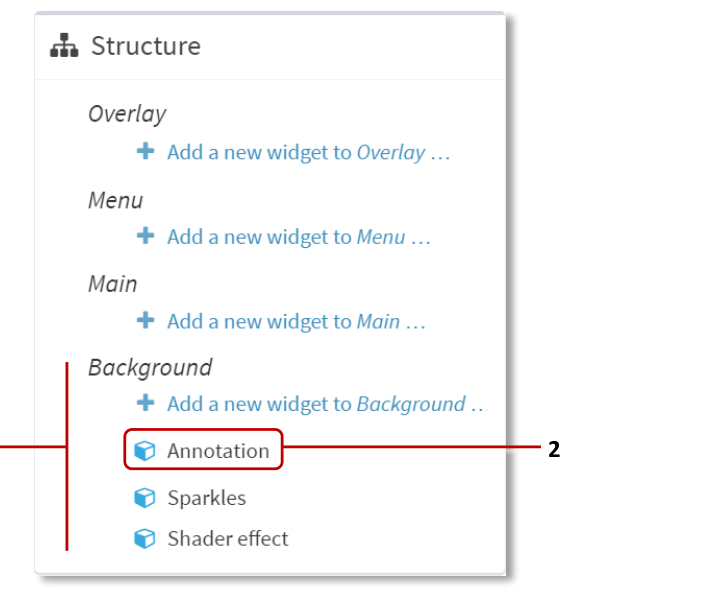
Editing a Structure screen. 1 Widgets in background layer. 2 Annotation widget is top of the list.
Edit the Annotation widget attributes:
Default color and Use random colors: These attributes set the color of the pen or finger stroke. Users cannot override these colors.
Enable drawing with pens and Enable drawing with fingers: When enabled, these attributes allow users to draw on the app background.
Annotation lifetime: This attribute defaults to 2 minutes. When the lifetime expires, any annotations on the app background automatically fade and disappear. If you set the lifetime to zero seconds, annotations never fade and can only be removed with an eraser card (see Remove Annotations).
Click the Save button.
Enable Annotations on a Widget
These annotations are associated with a specific widget only.
Note
When drawing annotations with a pen or finger, the stroke must start over the widget. You can draw a stroke that extends beyond the widget onto the app background. However, you cannot start a stroke on the background and extend it over the widget.
Follow these steps:
Edit a structure.
Click Structures in the left-hand menu.
Click the structure you want to edit. For example, My First Structure. The Editing a Structure screen appears.
Add an Annotation widget.
Go to the Main section and click the widget you want, such as an Image Viewer widget.
In the widget attributes pane, go to the Annotation widget.
Click the New button.
In the Add a new Annotation widget pop-up, add the Annotation widget.

Add a new Annotation widget pop-up.
Type a name for the new Annotation widget. For example, Annotations for Widgets.
Click the Save button.
Edit the new Annotation widget:
In the widget attributes pane, go to the Annotation widget.
Click the Edit button to display the Editing a widget screen.
Edit the following attributes:
Default color and Use random colors: These attributes set the color of the pen or finger stroke. Users can override these colors if you add a toolbar with a Color button.
Enable drawing with pens and Enable drawing with fingers: When enabled, these attributes allow users to draw on the widget.
Annotation lifetime: This attribute defaults to 2 minutes. When the lifetime expires, any annotations on the widget automatically fade and disappear. If you set the lifetime to zero seconds, annotations never fade and can only be removed with an eraser card or a toolbar Clear button.
Click the Save button.
Remove Annotations
There are three ways to remove annotations:
User can erase annotations with an eraser card.
You can configure the Annotation lifetime attribute to automatically erase annotations after a specified period.
(For widget annotations only) If a widget has a toolbar, you can include the Clear button to allow users to manually erase the widget's annotations.