Keyboard
When a user taps an editable text field in Showcase, for example a web browser address field, an on-screen keyboard is displayed. User can use this on-screen keyboard to write text in the field. There can be multiple text fields active at the same time, each with their own on-screen keyboard.
You can also connect a physical keyboard to the machine wirelessly or with a cable. See the Keyboard Focus section below for details about controlling which text field gets the physical keyboard input.
To speed up text entry and avoid typing errors, MT Showcase supports predefined text, also known as "Snippets". User can simply tap an item in the snippets list, attached to the on-screen keyboard, to input the text to the text field. See the Snippets section below for more information on configuring text snippets for Showcase.
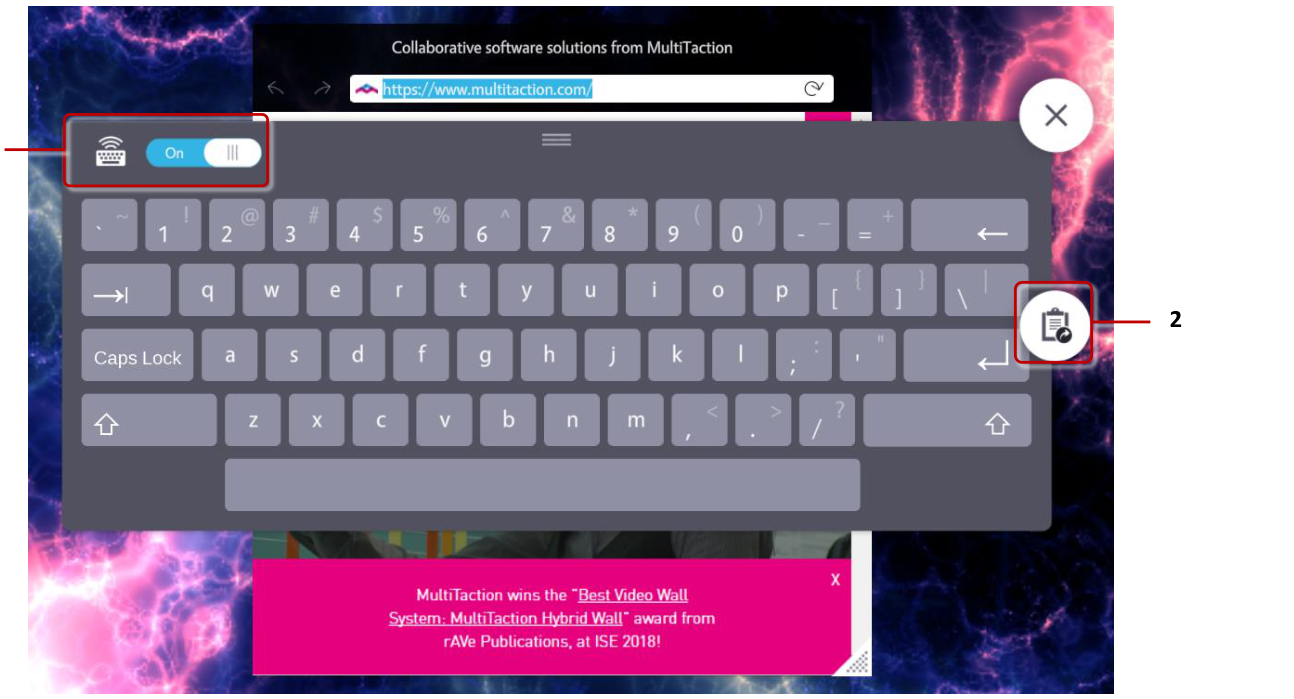
Showcase on-screen keyboard. 1 Physical keyboard focus indicator. 2 Snippets list button.
Keyboard Focus
There can be multiple text fields active in Showcase at the same time, each with their own on-screen keyboard. In addition, a single text field can have the physical keyboard focus, that is, when you type with the physical keyboard the text goes to that field. When you tap an editable text field in Showcase, it automatically gets the physical keyboard focus if nothing else currently has focus. Otherwise you can use the focus slider on the on-screen keyboard to move the physical keyboard focus to the current text field.
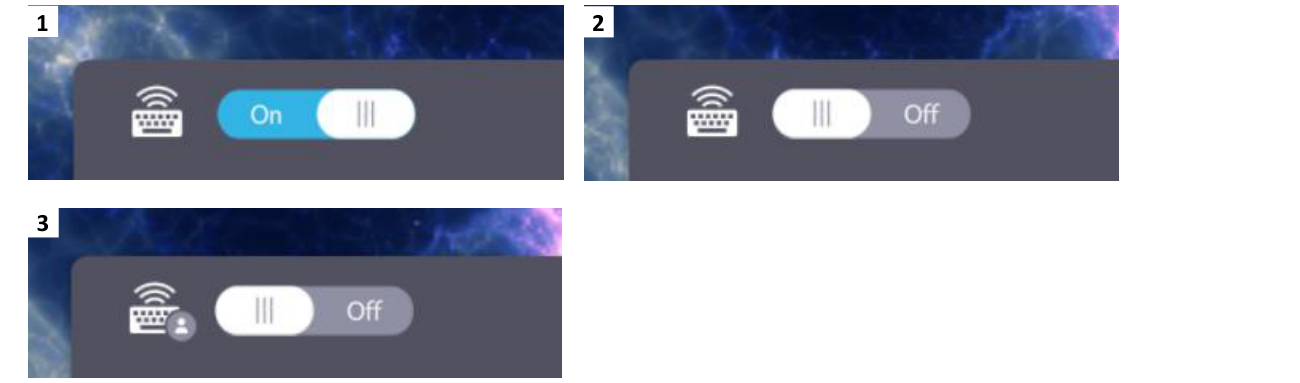
Current field has focus.
- align
center
- alt
Keyboard focus indicator showing nothing has focus
Nothing has focus.
- align
center
- alt
Keyboard focus indicator showing another field has focus
Another field has focus.
Snippets
To speed up text entry and avoid typing errors, MT Showcase supports predefined text, also known as "Snippets". When you use an on-screen keyboard to type, you can insert predefined snippets. This is useful when you need to repeatedly enter the same text string such as a web site URL or email address.
Add Snippets to Your App
Snippets are defined in a Snippets service. Follow these steps to add a Snippets service to your app:
Click Service Sets in the left-hand pane.
Either click an existing service set (for example, My Service Set) or create a new service set.
In the Editing a service set screen, go to the Add new service section:
Select Snippets from the Select Service drop-down menu.
Enter a name for the new Snippets service. For example, My Snippets.
Click the Add button.
Still in the Editing service set screen, go to the new Snippets section.
Add your predefined text snippets to the Snippets service.
Click the Create new button.
(Optional) Enter a Visible name for the snippet. This name will be displayed in the snippets list. If you do not define a Visible name, it is generated automatically from the text content.
Enter the Text for the snippet. This text is entered in the text field when user taps this snippet.
Repeat for any other snippets you wish to add.
Click the Save button to add the Snippets to your service set.
If you have not already done so, remember to add the service set containing the Snippets service to your app.
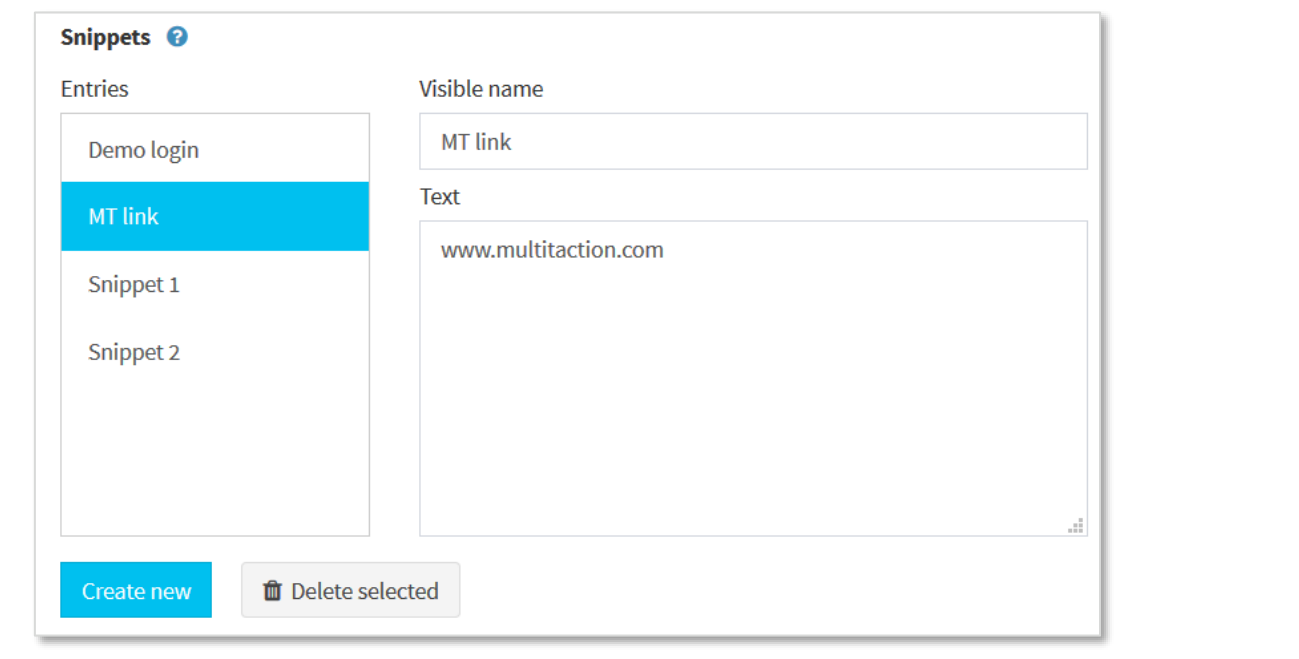
Editing a service set screen, Snippets service. Text snippets editor.
Insert Snippets to Text Fields
Once you have added a Snippets service with predefined text snippets to your app, the on-screen keyboard in Showcase displays a new Snippets list button. Tap the button to display a list of configured snippets.
Tap a snippet item in the list to enter the associated text to the text field. You can tap the eye button to see the actual text that will be inserted.
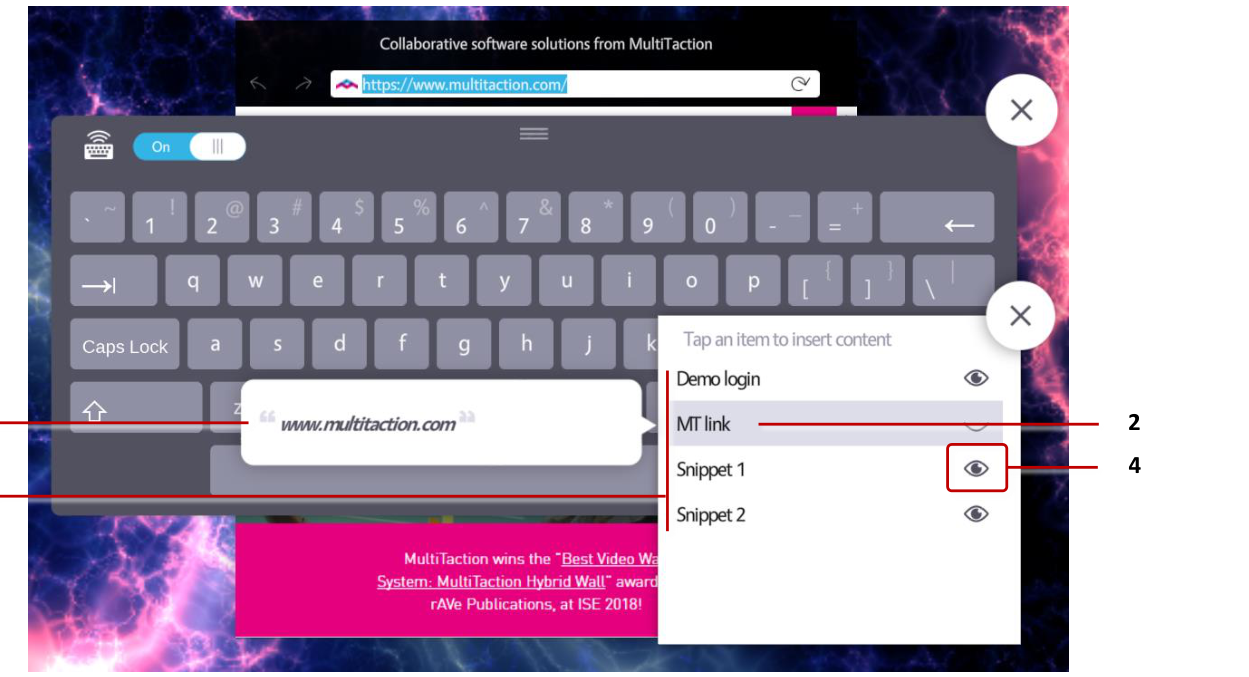
On-screen keyboard with configured text snippets. 1 Text content of a snippet. 2 Visible name of a snippet. 3 Tap an item to enter the text into the text field. 4 Tap the eye button to see the actual text that will be inserted.