Import Export
You can export or import MT Showcase apps. You may want to do this for backup purposes or to import apps onto a different video wall.
You can export apps in their entirety, or you can selectively export structures, themes, service sets, Codice data, and media library assets. You can subsequently re-import data that you exported previously.
Exported Files
Exported data is downloaded as a .showcase file to your local computer. On Windows
computers, the file is saved to the \Downloads folder in your user profile.
Exported files use this name format: <name>.showcase
Where <name> is the optional name or description you provide when you run an export
operation. For example, MyExport.showcase.
Export Data from MT Showcase
You can export any combination of data on your MT Showcase server. Follow these steps:
Click Import & Export in the left-hand menu.
Go to the Export a File section.
(Optional) Add a short name or description for your file. This name or description is incorporated into the exported filename.
You can export entire apps or individual structures, themes and service sets. Apps are always exported in their entirety with their associated structure, theme, and service set. If you do not want to export an entire app, you can selectively export its structure, theme or service set. Do one of the following:
Select which apps you want to export, or
Select which structure, theme or service set you want to export.
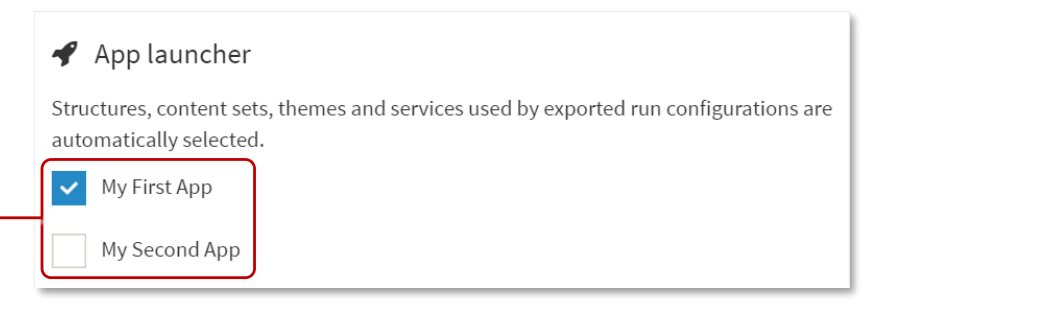
Import & Export screen, Export a File section. 1 Check boxes for exporting apps.
(Optional) Export the Codice database. Select the Codice DB checkbox to export details about all registered Codices (personal markers and erasers).
(Optional) Export the media library. You can choose to export all items ("assets") in the media library or only items that are currently used by a structure, theme or content set.
Tip
If your media library is very large, it may be more practical to maintain separate copies of library items (for example, in a backup folder on your network), instead of exporting all items to a showcase file.
Click the Export button.

Import & Export screen. 1 Export check box for Codice database. 2 Export options for media library. 3 Export button.
Exported data is saved to a showcase file, as described above. An advisory at the bottom of the Import & Export screen provides a time-limited hyperlink to the downloaded file.
- align
center
- alt
Download advisory for showcase file containing exported data
Download advisory for showcase file containing exported data.
Import Data into MT Showcase
You can re-import files of MT Showcase data that you exported previously.
Follow these steps:
Click Import & Export in the left-hand menu.
Go to the Import a File section.
Click the Choose File button and browse to the showcase file you want.
Click the Upload button.
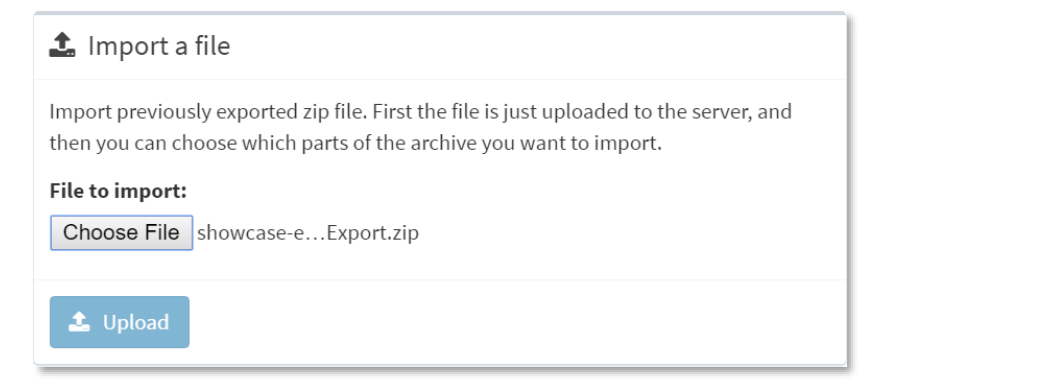
Import & Export screen, Import a File section.