Backgrounds and Animation
You can enhance your MT Showcase apps by including animated backgrounds and animation effects.
The following animated backgrounds are available:
Awesome: Displays a background of drifting clouds, similar in effect to the Aurora Borealis. By default, the clouds are purple and cyan but you can fully customize the colors and animation speed.
Shader Effect: The default shader resembles the night sky, with dramatic purple and magenta nebulae drifting across the screen, punctuated with cores of bright white light. However, you can use a custom shader file if required.

Awesome background (default colors).
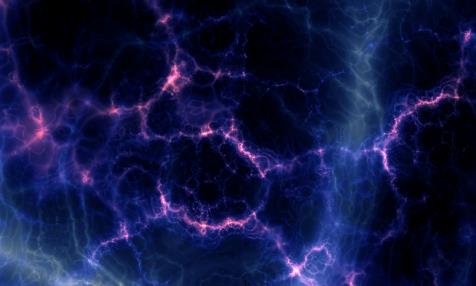
Shader Effect background.
For extra visual impact, you can also add animation effects. These effects are interactive and respond to touches, emanating outwards from the user's fingers:
Champagne: Displays streams of rising bubbles, like in a glass of sparkling wine.
Particles: Displays small floating circles, randomly connecting to nearby circles.
Ripple: Displays wavelets, like ripples on a pond.
Sparkles: Displays swirls of particles. Its effect is like dragging your hand through a sparkling fluid.

Champagne animation effect.

Particles animation effect.

Ripple animation effect.

Sparkles animation effect.
Add an Animated Background
Follow these steps:
Click Structures in the left-hand pane.
Click the structure you want to edit. For example, My First Structure. The Editing a Structure screen opens.
Go to the Background section and click Add a new widget to Background.
From the pop-up widget menu, choose a background.
In the right-hand attributes pane, edit the background attributes. For example, you can edit the animation speed. For the Awesome background, you can also customize the colors; see Customize Colors for Awesome Background.
Click the Save button to add the background to your app's structure.
Add Animation Effects
These effects are purely cosmetic and display above or below items in the app's main layer. You can add them to the overlay layer or background layer. When added to the overlay layer, the effects are superimposed above the main layer. When added to the background layer, they appear to be underneath the main layer.
Note
The Sparkles effect is only available in the background layer.
Follow these steps:
Click Structures in the left-hand pane.
Click the structure you want to edit. For example, My First Structure. The Editing a Structure screen opens.
Go to the Background section and click Add a new widget to Background. Or go to the Overlay section and click Add a new widget to Overlay.
From the pop-up widget menu, choose an animation effect: Champagne, Particles, Ripple, or Sparkles.
In the right-hand attributes pane, edit the animation effect attributes. For example, you can edit the colors and size of the Particles animation and the level of bubbles generated in the Champagne effect.
Click the Save button to add the effect to the app's structure.
Customize Colors for Awesome Background
By default, the Awesome background of drifting clouds uses a purple and cyan color scheme but you can fully customize the colors. For example, you can specify a background that complements your corporate branding.
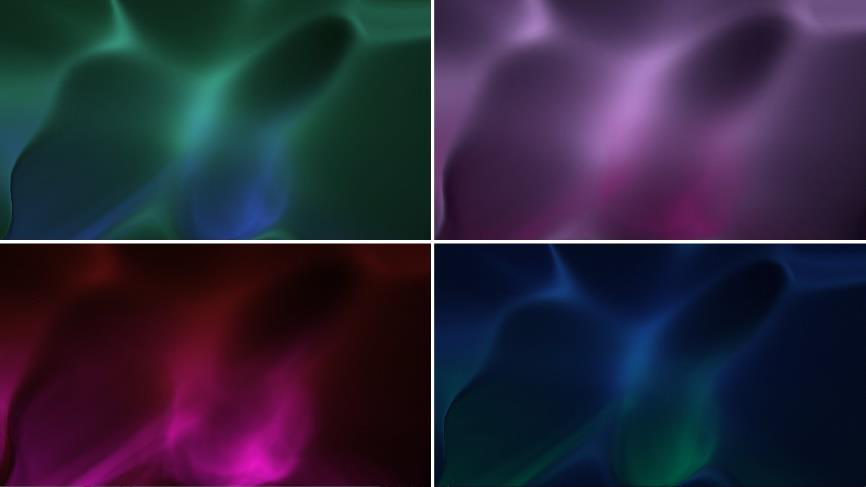
Awesome background, color variations.
Note
This section describes how to customize the Awesome colors by editing an app directly. But you can also edit the Awesome colors in a theme. Open the theme you want, go to the Awesome component, and repeat the instructions below.
To edit the Awesome colors directly, follow these steps:
Click Structures in the left-hand pane.
Click the structure that contains the Awesome background you want to edit. For example, My First Structure. The Editing a Structure screen opens.
Go to the Background section and click the Awesome widget.
In the right-hand attributes pane, go to the Awesome attributes section.
Edit the following attributes:
Background color
Background highlights color
Foreground color
Foreground highlights color
You can quickly experiment with different background and foreground color combinations. You typically choose a lighter color for the highlights.
If required, other attributes enable you to adjust the background "lightness" and the amount of foreground color in the animation.
Click the Save button.